
Last Updated on October 21, 2026
Here is the Image to C Array converter tool for ESP32 and SSD1306 OLED display you are looking for so long, most beginner who connects the OLED display to an ESP32 reach the same point that is text works and the number look nice and then comes the next idea that, can i show my own logo or photo on this screen?
The answer is yes, you can but the problem is that SSD1306 OLED does not understand JPEG, JPG or PNG files and it understands only one thing that is pixels that are either ON or OFF. So that before your picture can appear on the display it need to go through three changes.
- Resize it to the exact screen size 128×64 pixels.
- Convert it to black and white that is monochrome.
- Finally pack the pixels into bytes and write them as a C Array that your Arduino code can store in flash memory.
This is what an image to C Array converter does.
Here the HTML and Java script tool given to upload and convert your image to C array code.
This tool works with any JPG, PNG or Webp image and the output size is exactly 128x64 pixels, this is for full screen SSD1306 driver. Adjust the threshold to get clear image and use invert option if you need. Then the C Array changes accordingly just copy and past in the Arduino code then upload to the ESP32 connected with OLED Display.
Circuit Diagram
Components Required
- ESP32 development board (here we used ESP32 DOIT Devkit V1)
- 0.96 inch SSD1306 OLED Display 128x64 with I2C
- Breadboard and connecting wires
Tools and Software Requirement
- Computer installed with Arduino IDE
- Micro USB cable
- Adafruit GFX Library
- Adafruit SSD1306
Working Video
Construction & Working
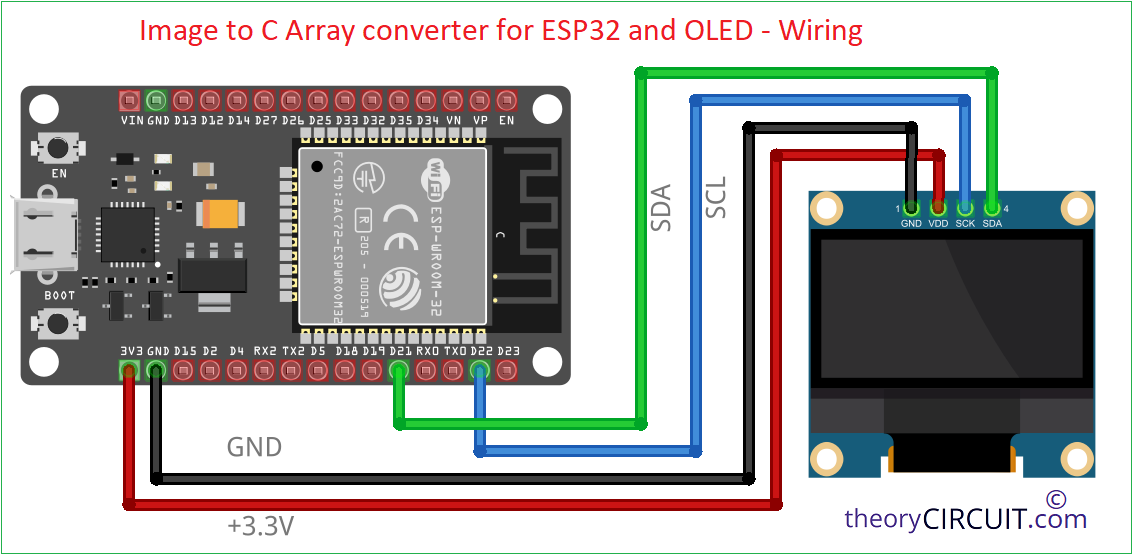
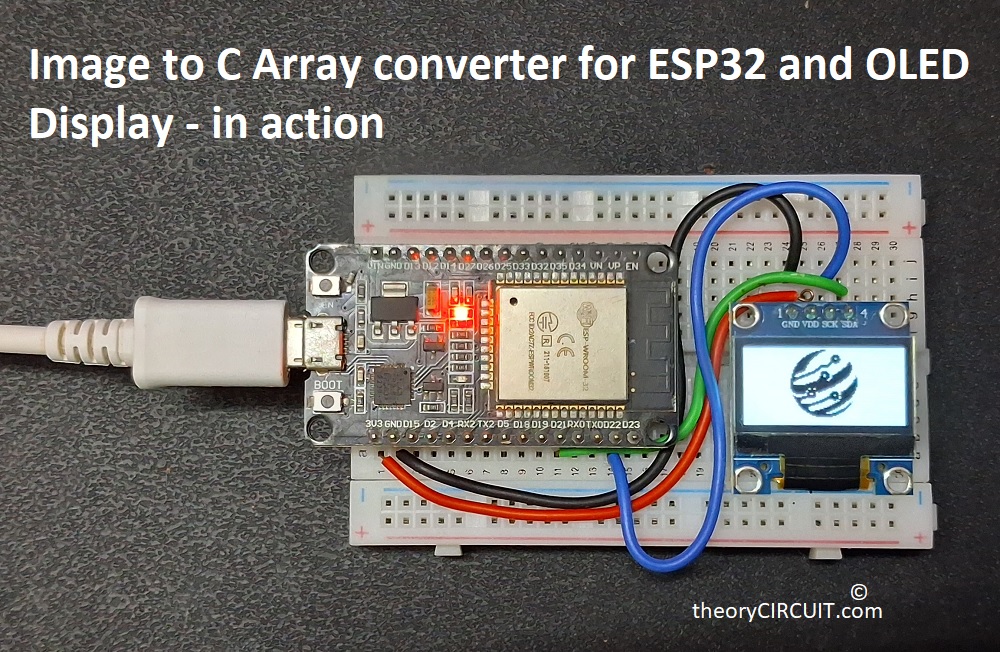
This circuit wiring is very simple because the OLED uses only the two I2C lines plus power lines. You know the ESP32 default I2C pins are GPIO21 for SDA and GPIO22 for SCL, +3.3V to VCC and GND to GND. Here the most OLED modules have pull up resistors on the SDA, SCL lines so you do not need to add external ones.
To understand why need a converter tool at all, you need to understand how the SSD1306 stores a picture. OLED display 128x64 pixel SSD1306 driver based one will have 128 columns and 64 rows, which makes 8192 pixels so every pixel is either lit (1) or dark (0) and there is no gray level and no color. That is why one pixel needs only one bit.
Here eight pixels are packed into one byte that is one byte has 8 bits, so one byte holds 8 horizontal pixels. The left most pixel is stored in the highest bit, example - bit 7, value 0x80. A full row of 128 pixels there fore needs 128/8 = 16 bytes and the full screen needs 16x64 = 1024 bytes.
Here is the small 8x8 heart shape to see and understand how it works.
| Row | Pixels (1 = ON) | Hex byte |
|---|---|---|
| 0 | 00000000 | 0x00 |
| 1 | 01100110 | 0x66 |
| 2 | 11111111 | 0xFF |
| 3 | 11111111 | 0xFF |
| 4 | 01111110 | 0x7E |
| 5 | 00111100 | 0x3C |
| 6 | 00011000 | 0x18 |
| 7 | 00000000 | 0x00 |
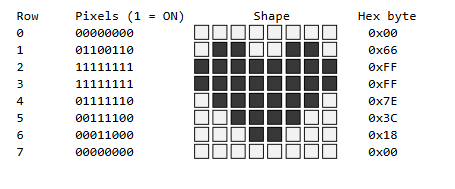
How you can find the pixel inside array, here is the example for a pixel at position (x,y) in a picture that is 128 pixel wide,
Byte index = y * 16 + (x >> 3)
Bit mask = 0x80 >> (x & 7)
The pixel at x = 10 in row 0 lives in byte 1 because 10 >> 3 = 1 and its mask is 0x80>>2 = 0x20.
Arduino code to Display C Array image in OLED display with ESP32
#include <Wire.h>
#include <Adafruit_GFX.h>
#include <Adafruit_SSD1306.h>
#define SCREEN_WIDTH 128
#define SCREEN_HEIGHT 64
#define OLED_RESET -1 // No reset pin used
#define SCREEN_ADDRESS 0x3C // Change to 0x3D if your scanner shows 0x3D
Adafruit_SSD1306 display(SCREEN_WIDTH, SCREEN_HEIGHT, &Wire, OLED_RESET);
// 128x64 px, 1024 bytes - paste your converter output here
const unsigned char myBitmap[] PROGMEM = {
// 0x00, 0x00, 0x00, ... (1024 values in total)
};
void setup() {
Serial.begin(115200);
Wire.begin(21, 22); // SDA = GPIO21, SCL = GPIO22
Wire.setClock(400000); // Fast I2C for quicker screen updates
if (!display.begin(SSD1306_SWITCHCAPVCC, SCREEN_ADDRESS)) {
Serial.println(F("SSD1306 allocation failed"));
for (;;); // Stop here if the display is not found
}
display.clearDisplay();
display.drawBitmap(0, 0, myBitmap, SCREEN_WIDTH, SCREEN_HEIGHT,
SSD1306_WHITE);
display.display();
Serial.println(F("Bitmap displayed"));
}
void loop() {
// Nothing to do. The image stays on the screen.
}
In that Arduino code remove the following portion
// 128x64 px, 1024 bytes - paste your converter output here
const unsigned char myBitmap[] PROGMEM = {
// 0x00, 0x00, 0x00, ... (1024 values in total)
};
and copy past the C array code generated in the tool for your image, and then upload the code to see the image on OLED display.