
Last Updated on December 4, 2025
Most of the time when I’m working on display based project then i end up using buttons and UART commands or some fixed code to write data to the Display device like OLED. But recently i wanted something more flexible that is a small wireless OLED display that i can update instantly from a webpage interface. After lot of struggle and search i found perfect and good project on the internet and this project also inspired from the following one, you have to definitely check it: https://github.com/udit1567/Circuit_forge/tree/main/OLED%20Canvas
Here i have made code to have Drawing interface, Image upload and clear interface and text display interface, all these options will be available in the webpage that is served by ESP32 using WiFi connectivity, by this way we can achieve ESP32 wireless OLED Display.
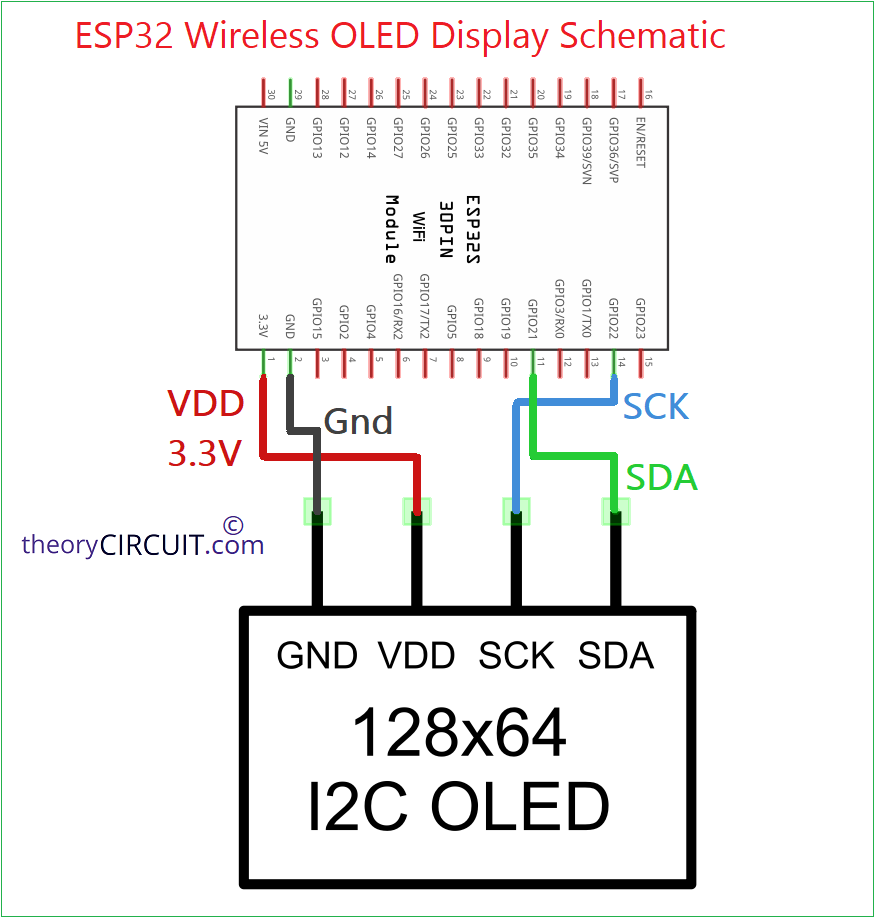
Circuit Diagram
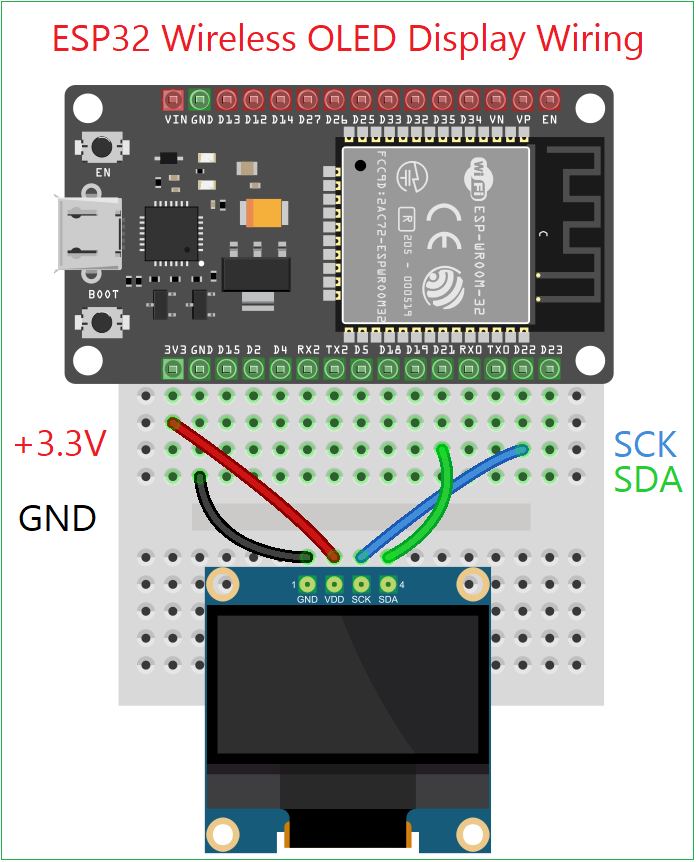
Wiring
Working Video
Require Components
- ESP32 Board (Here we used ESP32 DOIT Devkit V1)
- SSD1306 OLED Display (128×64 I2C 0.96″ OLED Display)
- Connecting Wires
- Micro USB Cable and Computer to code ESP32
If you are new to code ESP32 with Arduino IDE then read here.
Construction & Working
This small idea turned into a very handy tool for IoT dashboards, tiny UI experiments and for fun message boards etc., 3.3V is enough to drive SSD1306 I2C OLED display, so just connect VDD of display to 3.3V in ESP32 board then GND to GND. Connect SDA pin to GPIO 21, SCL (SCK) pin to GPIO 22 that’s it we finished our wiring. (If you have problem with brightness or contrast of OLED display just add 4.7K pull up Resistors on SDA and SCL lines.)
It is time to code ESP32 before that few things to understand.
Here ESP32 connects to your WiFi in STA mode. When you open its IP address then you will see a small web page with simple tools. You can upload an image or draw by clicking draw mode or type text on the given field and send. This web page converts the canvas content to a 1 bit 128X64 buffer, then the buffer is sent to ESP32 through a binary web socket frame. Finally ESP32 shows it on the SSD1306 OLED.
You may ask why we socket? I tried REST APIs during testing but sending 1024 byte using HTTP every time was slow and not smooth. So i used we socket for instant pushing of image frames and continuous connection. For small display like SSD1306, web socket is the easiest way to update pixel in real time.
ESP32 Wireless OLED Display Code
/* Code by theoryCIRCUIT.com for Interfaceing ESP32 and 128x64 OLED to
display images through web page interface and Wifi-do not remove this line*/

#include <WiFi.h>
#include <AsyncTCP.h>
#include <ESPAsyncWebServer.h>
#include <Wire.h>
#include <Adafruit_GFX.h>
#include <Adafruit_SSD1306.h>

#define W 128
#define H 64
#define OLED_RESET -1
#define OLED_ADDR 0x3C

const char* ssid = "Your_WiFi_SSID";
const char* pass = "Your_WiFi_Password";

Adafruit_SSD1306 oled(W, H, &Wire, OLED_RESET);
AsyncWebServer server(80);
AsyncWebSocket ws("/ws");

uint8_t buffer1bpp[W * H / 8];   // 1024 bytes

// ----------- Webpage -------------
const char page_html[] PROGMEM = R"HTML(
<!DOCTYPE html>
<html>
<head>
<meta name="viewport" content="width=device-width,initial-scale=1">
<title>ESP32 OLED</title>
<style>
body { font-family: Arial; padding:20px; background:#f2f2f2; }
.box { background:white; padding:15px; border-radius:10px; }
canvas { border:1px solid #666; background:black; image-rendering:pixelated; cursor: crosshair; }
button { padding:10px 14px; margin-top:10px; margin-right:8px; }
</style>
</head>
<body>

<h2>ESP32 Wireless OLED Display - theoryCIRCUIT</h2>

<div class="box">
  <p><b>1. Upload / Draw Image</b></p>
  <input type="file" id="imgfile" accept="image/*"><br><br>

  <!-- 512×256 canvas displayed -->
  <canvas id="cv" width="512" height="256"></canvas><br>

  <button onclick="sendImage()">Send Image</button>
  <button onclick="clearCanvas()">Clear Image</button>
  <button onclick="toggleDraw()">Draw Mode</button>
</div>

<br>

<div class="box">
  <p><b>2. Send Text</b></p>
  <input type="text" id="txt" placeholder="Enter text" style="width:200px">
  <button onclick="sendText()">Send Text</button>
  <button onclick="clearText()">Clear Text</button>
</div>

<p id="status">WebSocket: connecting...</p>

<script>
let ws;
let cv = document.getElementById('cv');
let ctx = cv.getContext('2d');
ctx.fillStyle = "black"; ctx.fillRect(0,0,cv.width,cv.height);

let drawing = false;
let drawMode = false;

// ------------------ WebSocket ------------------
function connectWS(){
  ws = new WebSocket("ws://" + location.host + "/ws");
  ws.binaryType = "arraybuffer";

  ws.onopen = () => document.getElementById("status").innerText = "WebSocket: connected";
  ws.onclose = () => {
    document.getElementById("status").innerText = "WebSocket: reconnecting...";
    setTimeout(connectWS, 1500);
  };
}
connectWS();

// ------------------ Image Upload ------------------
document.getElementById("imgfile").onchange = async(e)=>{
  let f = e.target.files[0];
  let img = await createImageBitmap(f);
  ctx.drawImage(img, 0, 0, cv.width, cv.height);
};

// ------------------ Draw Mode ------------------
function toggleDraw(){
  drawMode = !drawMode;
  alert(drawMode ? "Draw mode ON" : "Draw mode OFF");
}

cv.onmousedown = e => { if(drawMode){ drawing = true; draw(e); }};
cv.onmouseup = () => drawing = false;
cv.onmouseleave = () => drawing = false;
cv.onmousemove = e => { if(drawing && drawMode) draw(e); };

function draw(e){
  let rect = cv.getBoundingClientRect();
  let x = e.clientX - rect.left;
  let y = e.clientY - rect.top;

  ctx.fillStyle = "white";
  ctx.fillRect(x, y, 4, 4);  // brush size 4×4
}

// ------------------ Clear Canvas ------------------
function clearCanvas(){
  ctx.fillStyle = "black";
  ctx.fillRect(0,0,cv.width,cv.height);
}

// ------------------ Convert 512×256 → 128×64 1-bit ------------------
function pack1bit(){
  let temp = document.createElement("canvas");
  temp.width = 128;
  temp.height = 64;
  let tctx = temp.getContext("2d");

  tctx.drawImage(cv, 0, 0, 128, 64);

  let data = tctx.getImageData(0,0,128,64).data;
  let out = new Uint8Array(1024);

  for(let y=0; y<64; y++){
    for(let x=0; x<128; x++){
      let i = (y*128 + x)*4;
      let bright = data[i];
      if(bright > 100){
        let byteIndex = y*16 + (x>>3);
        out[byteIndex] |= (1 << (7 - (x&7)));
      }
    }
  }
  return out;
}

// ------------------ Send Image ------------------
function sendImage(){
  if(ws.readyState===1){
    ws.send(pack1bit());
  }
}

// ------------------ Send Text ------------------
function sendText(){
  let t = document.getElementById("txt").value.trim();
  if(t.length && ws.readyState === 1){
    ws.send("T:" + t);
  }
}

function clearText(){
  document.getElementById("txt").value = "";
}
</script>

</body>
</html>
)HTML";

// ----------- WebSocket Handler ----------
void handleWS(AsyncWebSocket *server, AsyncWebSocketClient *client,
              AwsEventType type, void *arg, uint8_t *data, size_t len)
{
  if(type == WS_EVT_DATA){
    AwsFrameInfo *info = (AwsFrameInfo*)arg;

    // binary image frame
    if(info->opcode == WS_BINARY && len == sizeof(buffer1bpp)) {
      memcpy(buffer1bpp, data, 1024);
      oled.clearDisplay();
      oled.drawBitmap(0, 0, buffer1bpp, W, H, 1);
      oled.display();
    }

    // text frame
    else if(info->opcode == WS_TEXT){
      if(data[0]=='T' && data[1]==':'){
        String text = String((char*)data).substring(2);

        oled.clearDisplay();
        oled.setCursor(0,0);
        oled.setTextSize(1);
        oled.setTextColor(SSD1306_WHITE);
        oled.println(text);
        oled.display();
      }
    }
  }
}

void setup(){
  Serial.begin(115200);

  oled.begin(SSD1306_SWITCHCAPVCC, OLED_ADDR);
  oled.clearDisplay();
  oled.setTextColor(SSD1306_WHITE);
  oled.setCursor(0,0);
  oled.println("Waiting...");
  oled.display();

  WiFi.mode(WIFI_STA);
  WiFi.begin(ssid, pass);
  while(WiFi.status() != WL_CONNECTED){
    delay(300);
    Serial.print(".");
  }

  Serial.print("IP: ");
  Serial.println(WiFi.localIP());

  ws.onEvent(handleWS);
  server.addHandler(&ws);

  server.on("/", HTTP_GET, [](AsyncWebServerRequest *req){
    req->send_P(200, "text/html", page_html);
  });

  server.begin();
}

void loop(){
  ws.cleanupClients();
}
Test it and if you feedback then share it on comment.